Adding the SDK
Importing the SDK
Download AsReaderBLESDK and AsReaderSDK4 locally.
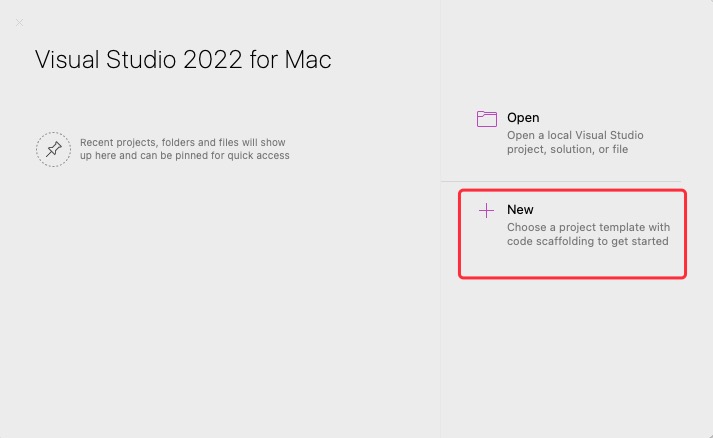
Create a new project.
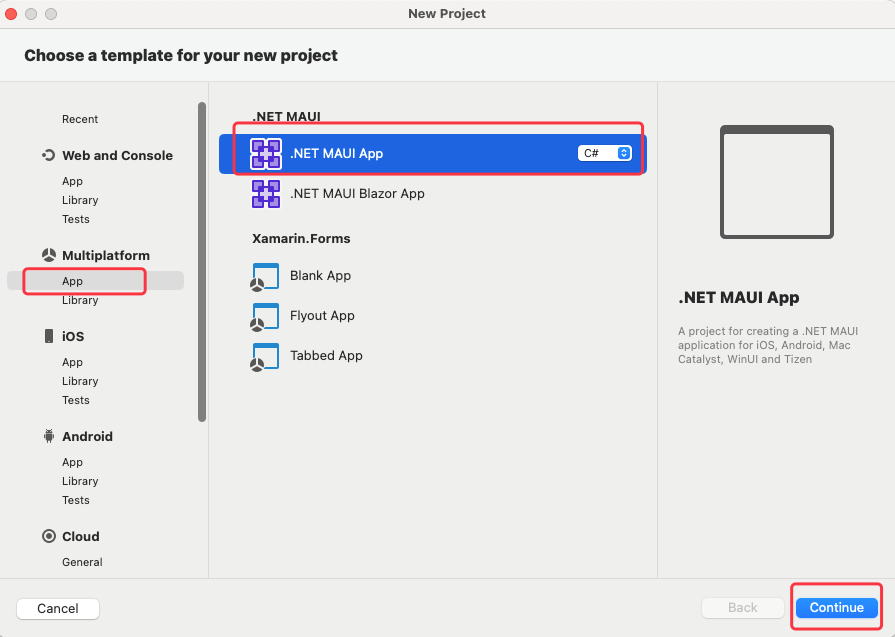
Select “.NET MAUI APP”.
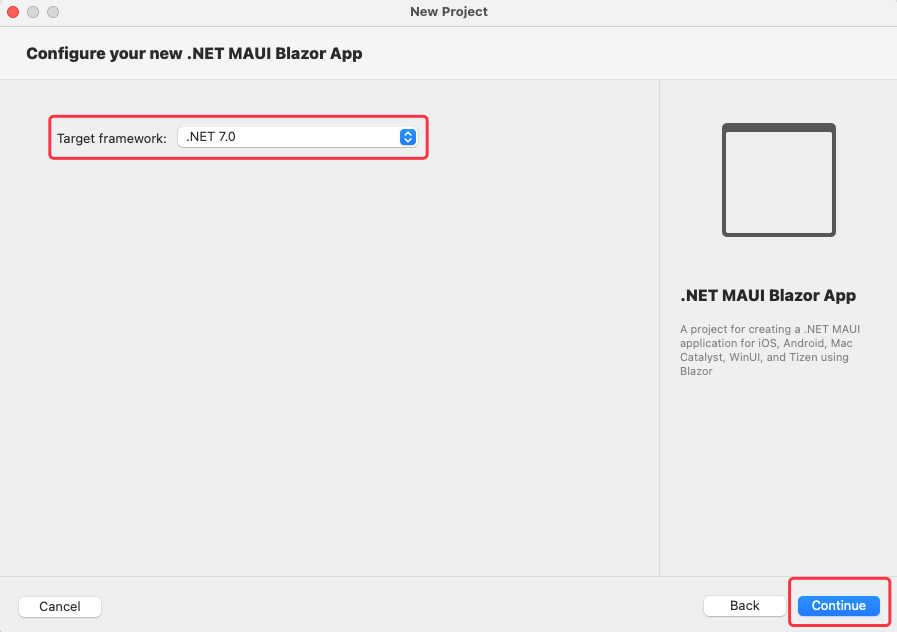
Select “.NET 7.0”.
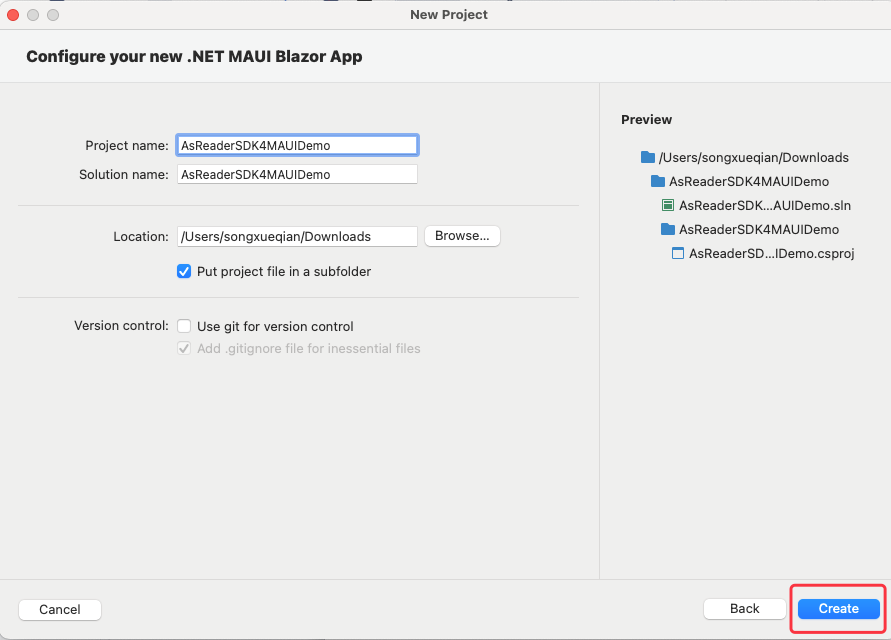
Create the App name and location.
Right-click on “AsReaderSDK4MAUIDemo.csproj” and open it with TextEdit.
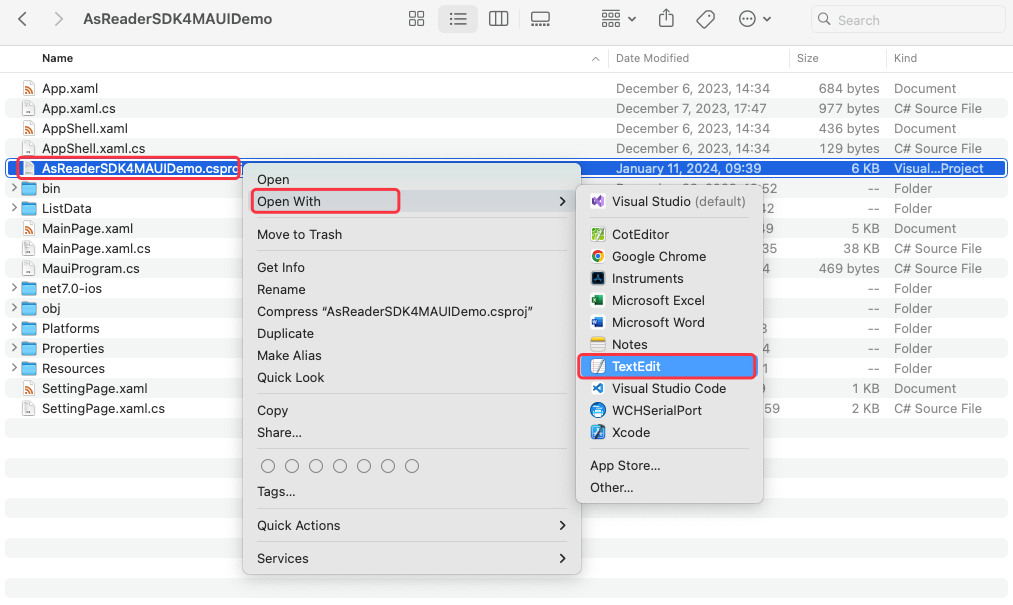
Delete all unnecessary frameworks within the red box in the figure below (net70-iOS). (This is the operation when using only the iOS platform. This step is not necessary for multi-platform.)
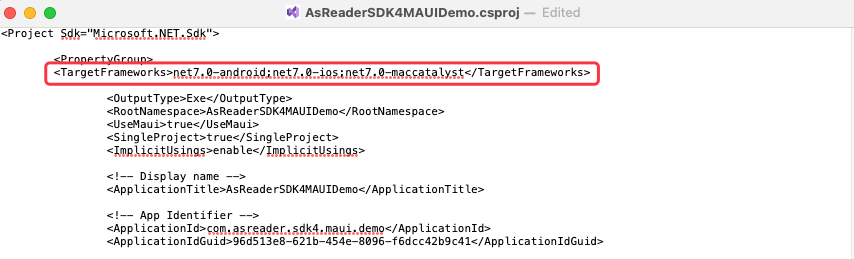
The result after deletion is shown below.
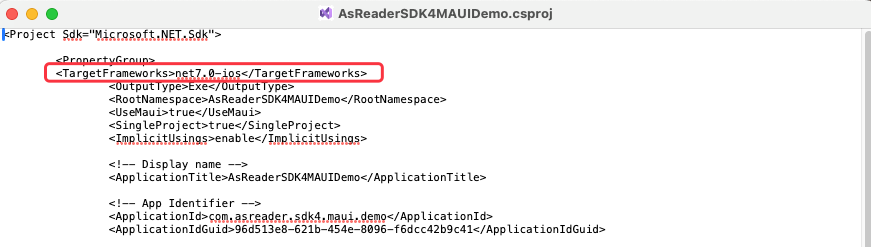
Copy the locally downloaded AsReaderBLESDK and AsReaderSDK4 to the project folder.
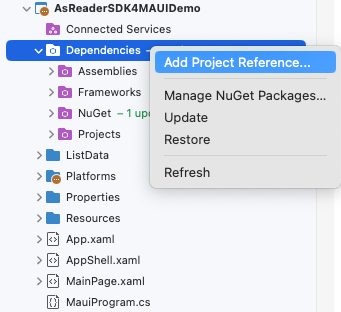
Dependencies -> Right-click -> Add Project Reference…
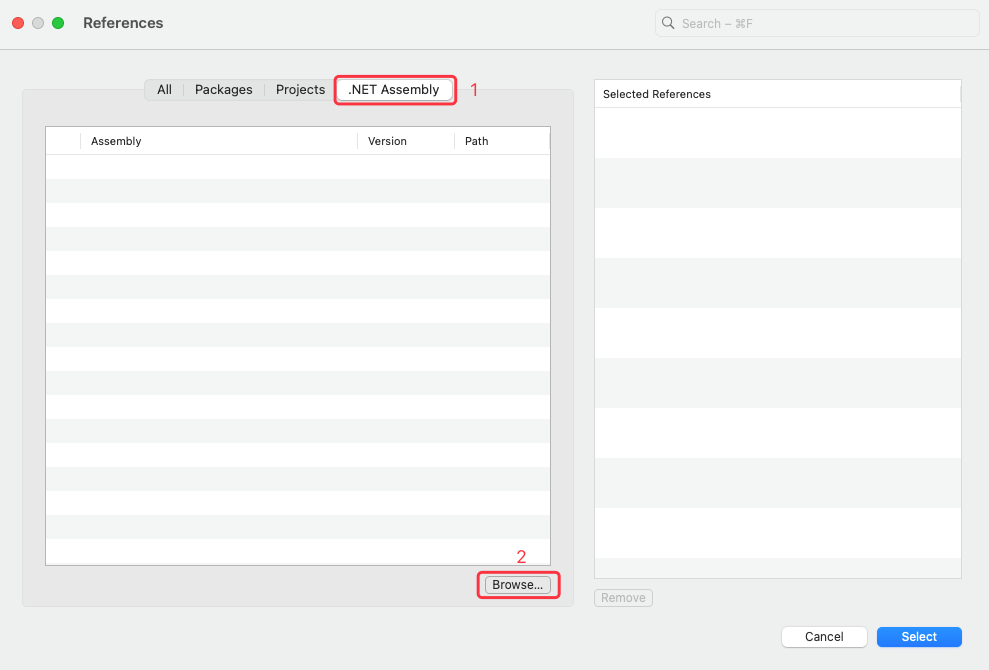
In the Pop-up window, click “.Net Assembly” and select “Browse…”.
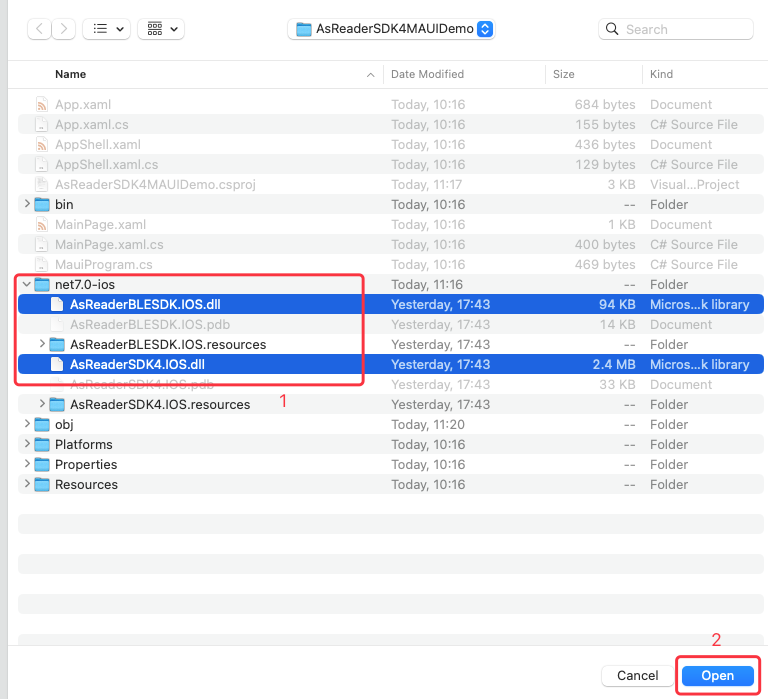
In the Pop-up window, select “AsReaderBLESDK.IOS.dll” and “AsReaderSDK4.IOS.dll” and click the “Open” button.
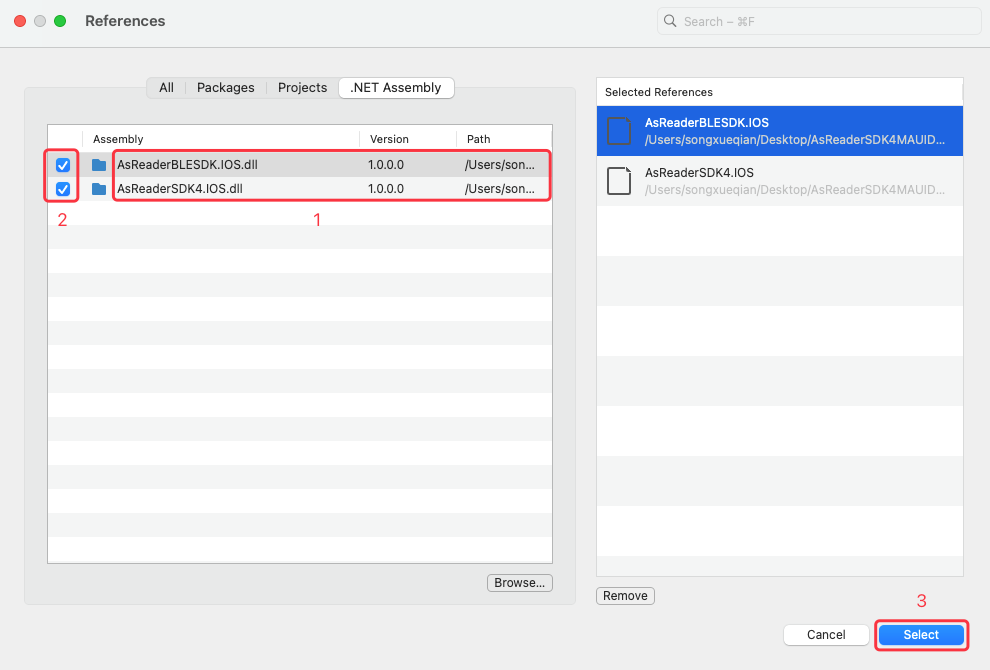
In the “References” window, select “AsReaderBLESDK.IOS.dll” and “AsReaderSDK4.IOS.dll” and click the “Select” button.
After adding, “AsReaderBLESDK.IOS” and “AsReaderSDK4.IOS” will appear in “Assemblies”.
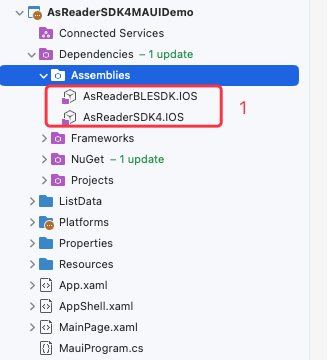
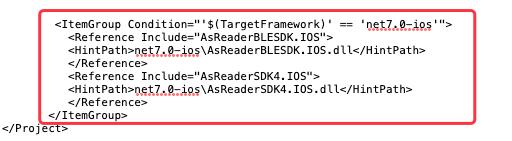
If you are using a multi-platform configuration, please change the library path referring to the figure below.
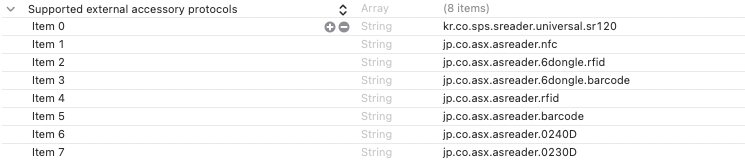
Adding Protocols
Add the supported protocols to Info.plist.
Adding Permissions
Adding Bluetooth Usage Permission
Add the Bluetooth usage permission to Info.plist.

Using the SDK
Importing the SDK
Import the SDK using the using statement in the class of the application that uses the SDK.

Inheriting the AsReaderDeviceDelegate Class
It is recommended to create this in the iOS folder of Platforms.
Object Initialization
Initialize the AsReaderBarcodeDevice object
AsReaderBarcodeDevice asReaderBarcodeDevice = AsReaderBarcodeDevice.SharedInstance();
asReaderBarcodeDevice.DelegateBarcode = new AsReaderDockManagerBarcodeDelegate();
Implementing Delegate Methods
Plugged Method
public override void Plugged(bool plug)
{
    if (plug)
    {
        //Connection Successful
    }
    else
    {
        //Disconnect
    }
}
ReaderConnected Method
public override void ReaderConnected(int status)
{
    if (status == 0xff)
    {
        //Power ON
    }
    else
    {
        //Power OFF
    }
}
ReceivedScanData Method
public override void ReceivedScanData(NSData readData)
{
    if (AsReaderInfo.SharedInstance().CurrentReaderMode == ReaderMode.Barcode)
    {
        NSString str = new NSString();
        try
        {
            str = new NSString(readData, NSStringEncoding.ShiftJIS);
        }
        catch
        {
            try
            {
                str = new NSString(readData, NSStringEncoding.UTF8);
            }
            catch
            {
                try
                {
                    str = new NSString(readData, NSStringEncoding.ASCIIStringEncoding);
                }
                catch
                {
                    str = new NSString("Encoding Error");
                }
            }
        }
    }
}
Power On
After receiving the connection success result in the Plugged method, call the method to turn the power On.
AsReaderDevice device = AsReaderRFIDDevice.SharedInstance();
device.SetReaderPowerWithPowerOnBeep(true, true, true, true, true, true, 0);
Start Scan
_ = AsReaderBarcodeDevice.SharedInstance().StartScan;
The scan result is called back in the ReceivedScanData method.
Stop Scan
_ = AsReaderBarcodeDevice.SharedInstance().StopScan;
Power Off
AsReaderDevice device = AsReaderRFIDDevice.SharedInstance();
device.SetReaderPowerWithPowerOnBeep(false, true, true, true, true, true, 0);
Changing the .Net Version
The demo application can only be used with the version of the tools that were used when it was built.
Example: If built with “.net MAUI 8”, it can only be used with “.net MAUI 8”. It cannot be used with “.net MAUI 7” or “.net MAUI 9”.
The following is an example of how to change “.net MAUI 7” to “.net MAUI 8”.
Right-click the Project -> Properties
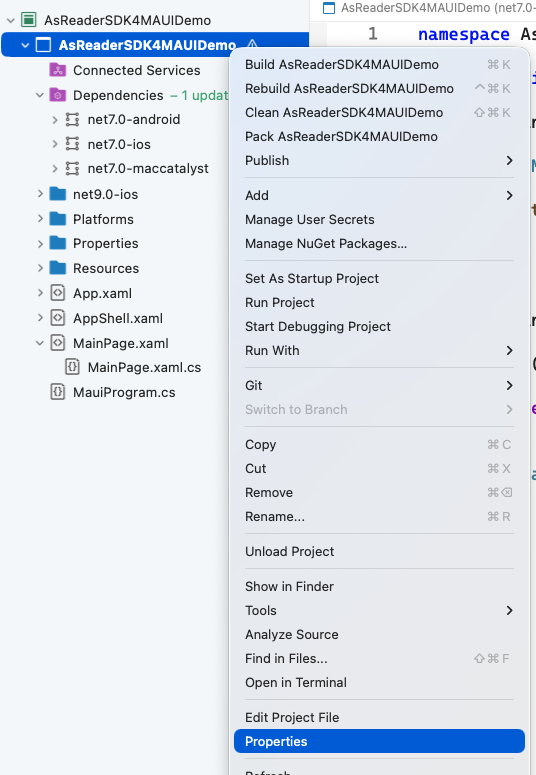
Under General -> Target .NET Runtime, select “.NET 8.0”.

Select the .csproj in the project folder and open it with an editor.
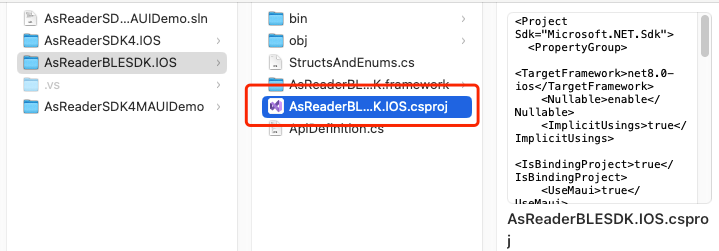
Perform the following modification:

<TargetFramework>net7.0-ios</TargetFramework>↓
<TargetFramework>net8.0-ios</TargetFramework>Add the following configuration:
<UseMaui>true</UseMaui>
<MauiVersion>8.0.3</MauiVersion>
<SkipValidateMauiImplicitPackageReferences>true</SkipValidateMauiImplicitPackageReferences>
Save the file after modification.
Reload the project after saving.
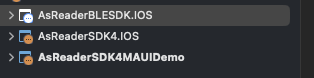
All the following projects must be modified Using steps 1-5 above.
Using the API
Please refer to the Objective-C SDK manual for information on using the API.
AsReader SDK for iOS